Smart Import
Turn booking confirmations, photos, and files into stays you can review and save.
Getting Started
What is Smart Import?
Smart Import finds hotel stays in files, photos, screenshots, and copied text, then puts them in your Inbox. Review each stay before choosing Save or Update. Smart Import is currently in beta.
How do I import my stays?
- Open Settings > Import Stays.
- Use Camera, select a photo, tap Choose file, or use Paste from clipboard for copied text or an image.
- On the preview screen, tap Start Import.
- When results are ready, tap Open Inbox. If you started from the Inbox, tap Review in Inbox.
- Review the result, then tap Save for a new stay, Update for a matching stay, or Skip.
Which files can I use?
You can import spreadsheets (CSV, TSV, or Excel .xlsx), PDFs, text files (.txt), saved emails (.eml), and photos or screenshots (JPEG, PNG, WebP, HEIC, or HEIF). One file can contain several stays.
For saved emails, Awaybook reads the subject and message. Import any attachments separately.
Do I need an account or Pro?
You need an Awaybook account and an internet connection. Importing and reviewing stays is free. Pro is required to save new imported stays or update existing ones.
Can I import from another app?
Yes. You can send a screenshot, hotel bill, or booking confirmation to Awaybook from apps such as Photos or Files.
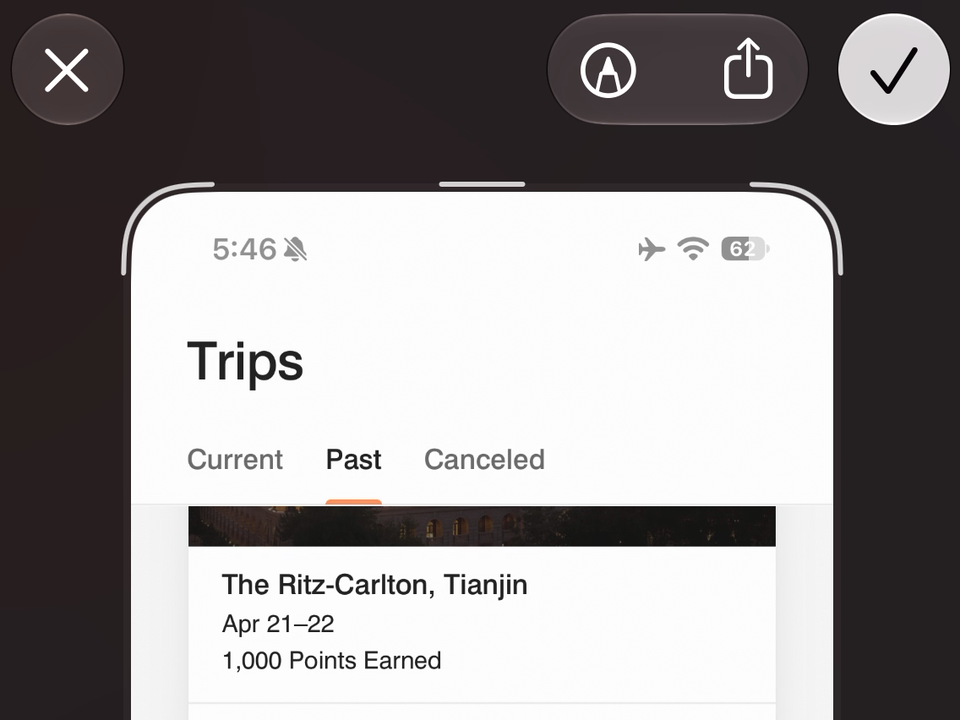
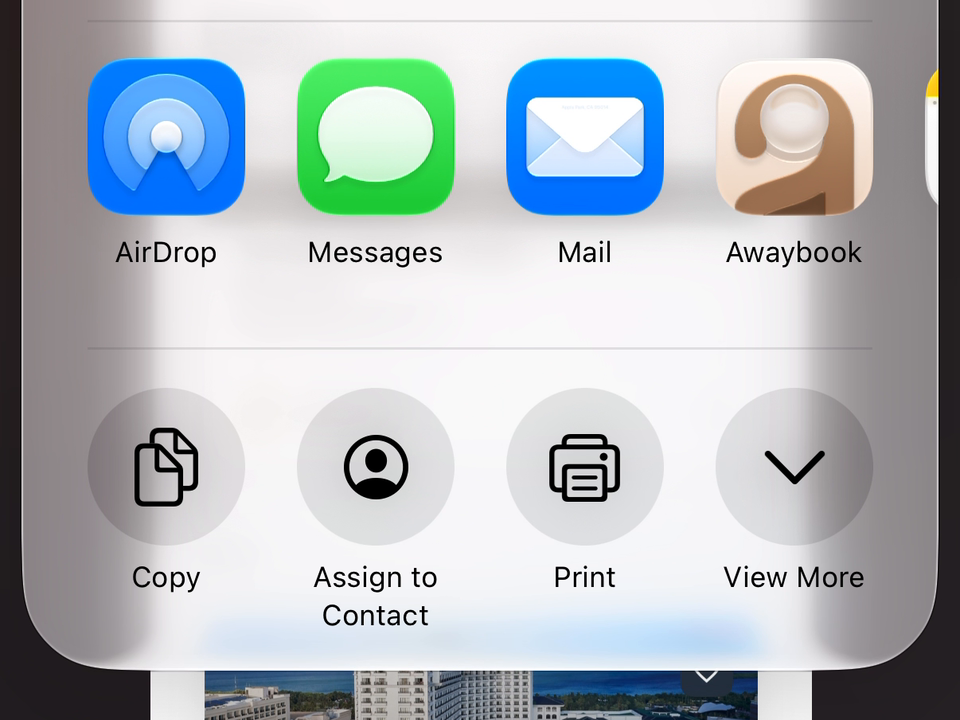
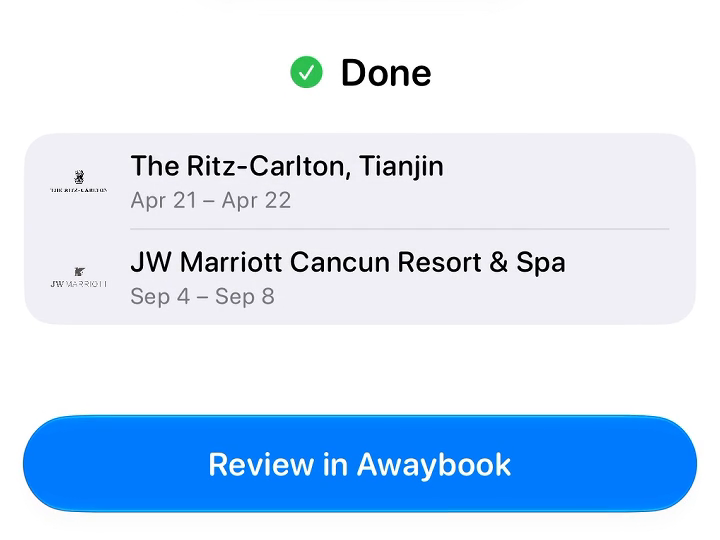
Select a screenshot to view it at full size.
If you can’t share from an app, save the file, take a screenshot, or copy the booking text and use Paste from clipboard in Import Stays.
How It Works
How is my import data processed?
When you tap Start Import, Awaybook securely sends the content you selected to its server. A third-party AI provider reads it to find hotel stays. The third-party AI provider does not use your data to improve their products. Only send content you want to import.
Is my import data kept on the server?
Awaybook does not keep your original upload after processing it. The stay details it finds are kept on the server in your account’s Inbox, even after you save or skip them. They aren’t automatically deleted. To have them deleted, email frontdesk@awaybook.app.
Learn more in our Privacy Policy and Terms of Service.
What information can Smart Import read?
Smart Import can read hotel names, locations, stay dates and times, confirmation numbers, room details, costs, currencies, loyalty details, points earned, notes, and your stay ratings. What it finds depends on what’s in your file or image. Check the details before saving.
Can I correct a stay before saving it?
You can’t edit stay details or change a matched hotel in the Inbox yet. If something is wrong, tap Skip, then correct your file and import it again, or add the stay manually.
What if Awaybook can’t find my hotel?
If Awaybook can’t find the hotel and shows Add Manually, tap it to create a custom place. Fill in the place details to finish adding the stay.
Will importing create duplicate stays?
Awaybook checks for a saved stay with the same confirmation number, or the same hotel and dates. If it finds one, you’ll see Update instead of Save. Different booking details can prevent a match, so check before saving another copy.
Will an import change my existing stays?
Only when you choose Update. Review the changes first, or tap Skip to keep your stay as it is. Missing details won’t erase existing stay information. If you approve a change of hotel, its details are replaced together.
Can I use the Awaybook template?
Yes. Tap Get template in Import Stays, fill in your stays, and import the saved file. Choose Import Exactly to read the rows as written, or Smart Import for help reading dates and other details. Both need an internet connection and let you review stays in your Inbox before saving.
How is this different from Calendar Sync?
Smart Import reads files, photos, or text you choose. Calendar Sync finds stays in your selected calendars. Both let you review stays in your Inbox before saving. Checking your calendar yourself is free; automatic checks and saving imported stays require Pro. See the Calendar Sync FAQ for setup.
Troubleshooting
Why weren’t any stays found?
Check that your file or image includes a hotel name and stay dates. Awaybook needs both check-in and checkout dates to save a stay. It can work out a missing date if you provide the other date and the number of nights. Flights and other entries that aren’t hotel stays are skipped.
Why are the dates or hotel incorrect?
A missing year, unclear dates, or an incomplete hotel name can lead to mistakes. Include the year and the hotel’s location in your file when possible. If a result is wrong, tap Skip, then correct the file and try again, or add the stay manually.
Why is my file too large?
Files can be up to about 7 MB, PDFs up to 50 pages, and spreadsheets up to 1000 rows of stays. Very large photos or complex files may also exceed the limits. Try a smaller file, fewer rows, or a cropped image showing just the booking details.
What should I do if an import fails?
Follow the message on the import screen:
- Couldn’t access the file: Choose it again.
- Over the import limit: Try a smaller file or fewer rows.
- Imported a lot today: Try again later.
- Sign in first: Open Awaybook and sign in.
- Import interrupted: Check your Inbox. Some stays may already be there. Import the file again if any are missing.
Does closing the import screen cancel it?
If you close the preview before tapping Start Import, nothing is imported. Once you start, closing the screen doesn’t cancel the import. Check your Inbox for the results.
Have a question that isn’t answered here? Email frontdesk@awaybook.app.
Last updated: 2026-09-06